Step-By-Step User Guide
Step #1
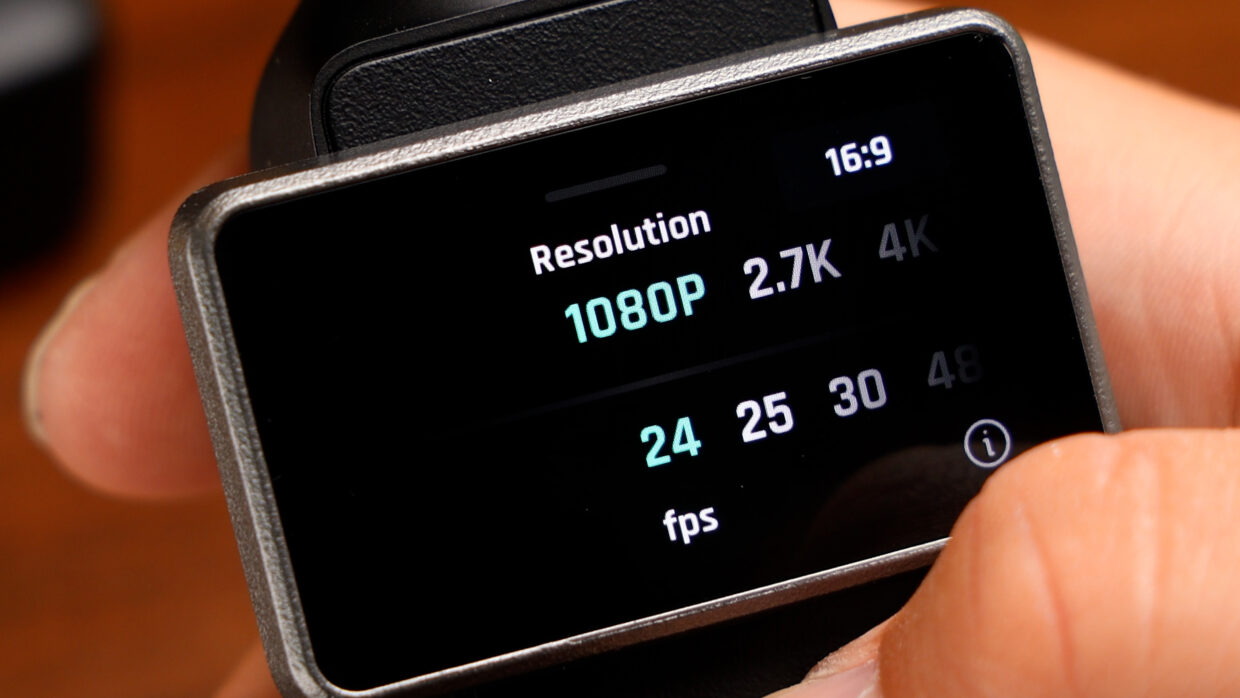
First things first, confirm your frame rate. In this case, I’m using 23.98.
Step #2
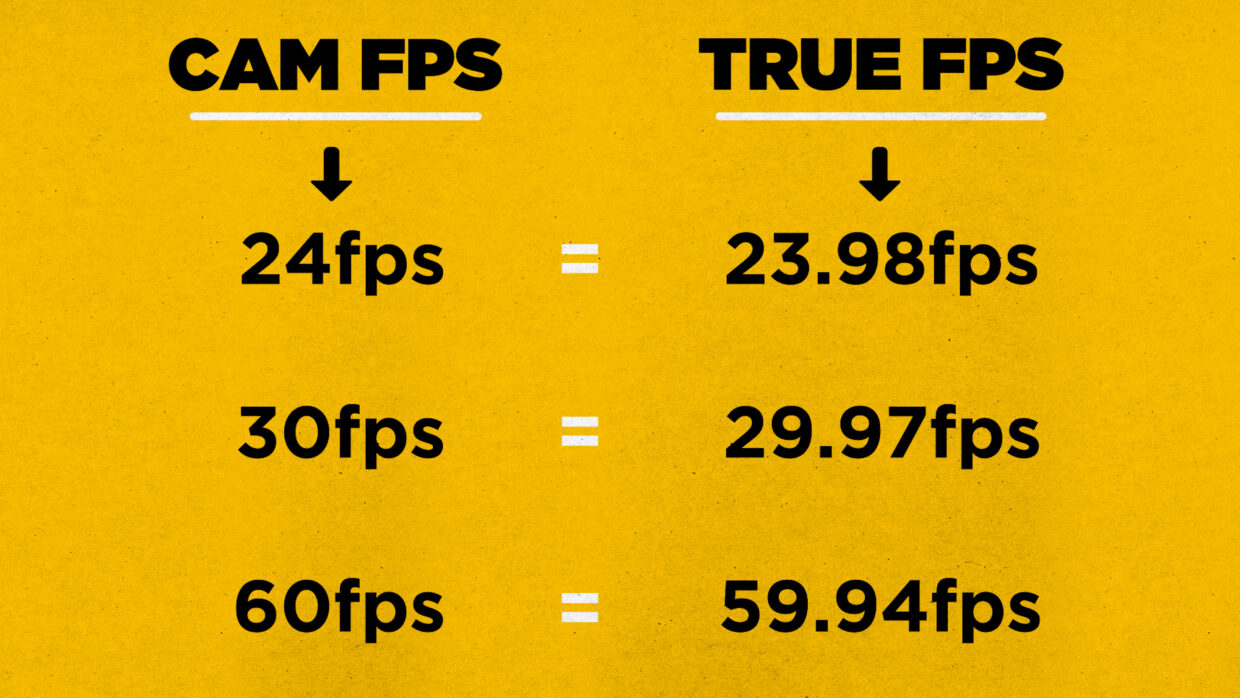
Note that the frame rate in the menu is not the true frame rate the device captures. This is extremely common on devices of this type.
Here is a quick conversion chart to help you out.
Step #3
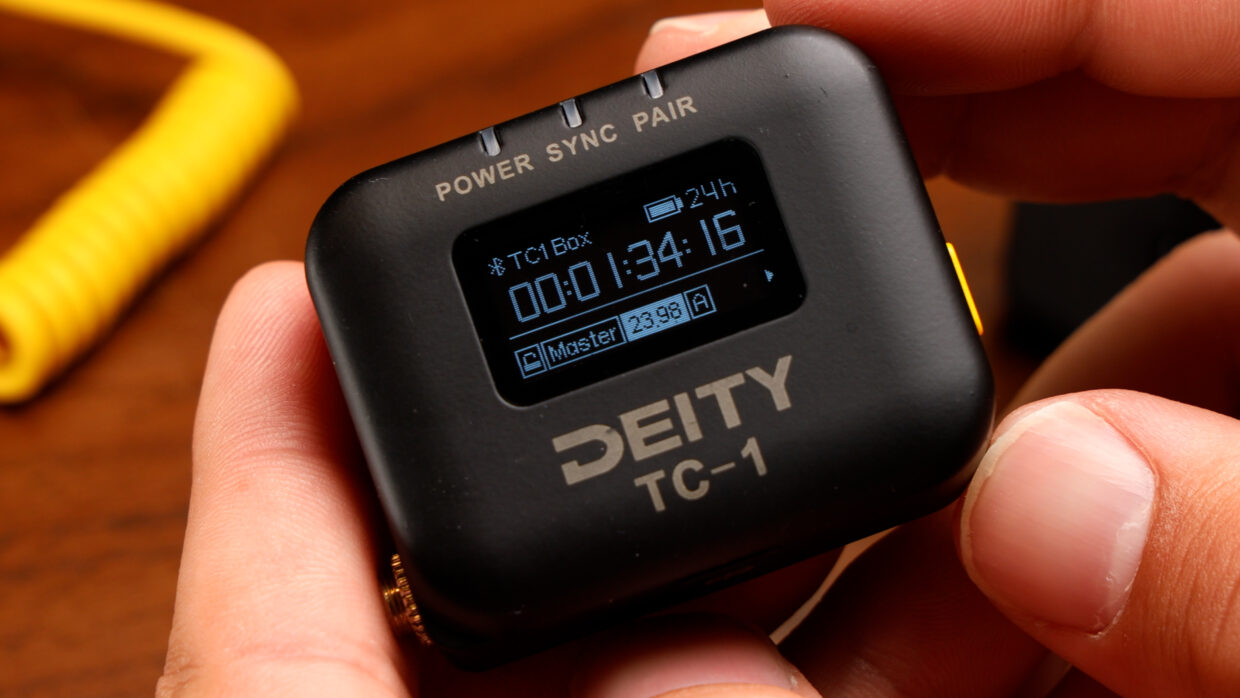
On your TC-1, scroll over to the frame rate section and match it to the camera.
Next, scroll over to the out type section and select “A-Out.”
Step #4
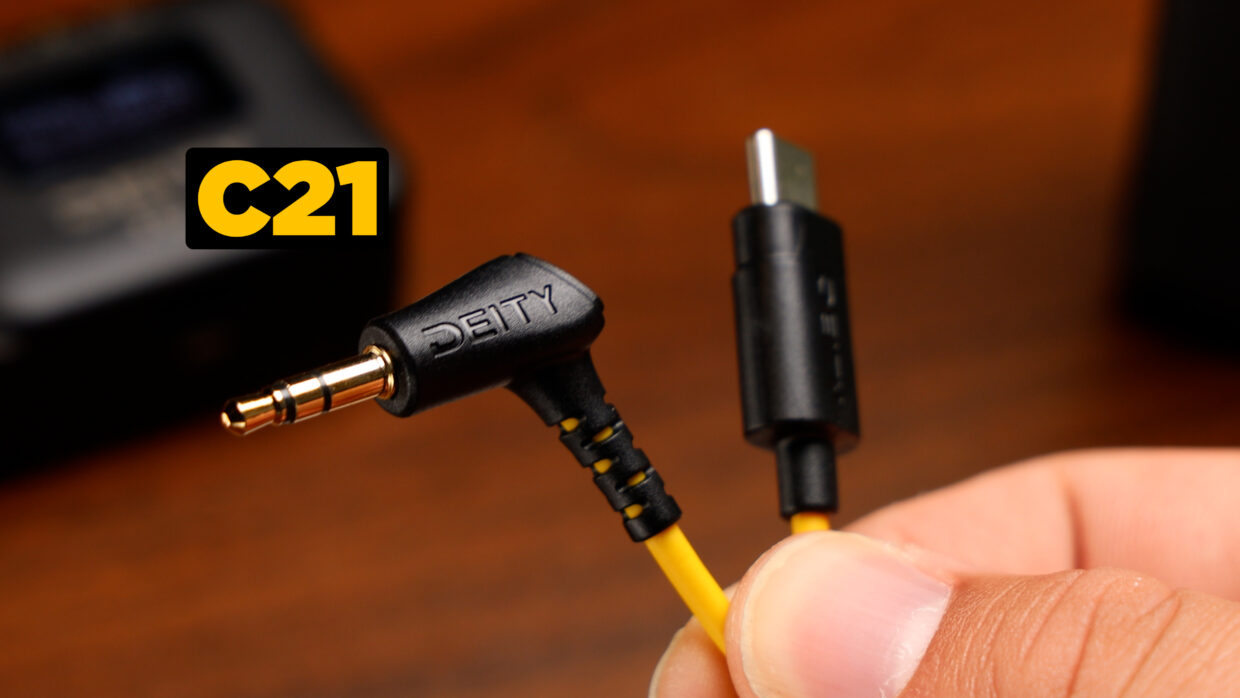
To connect the TC-1 to your XTRA Muse, you will need a Deity C21 cable.
Step #5
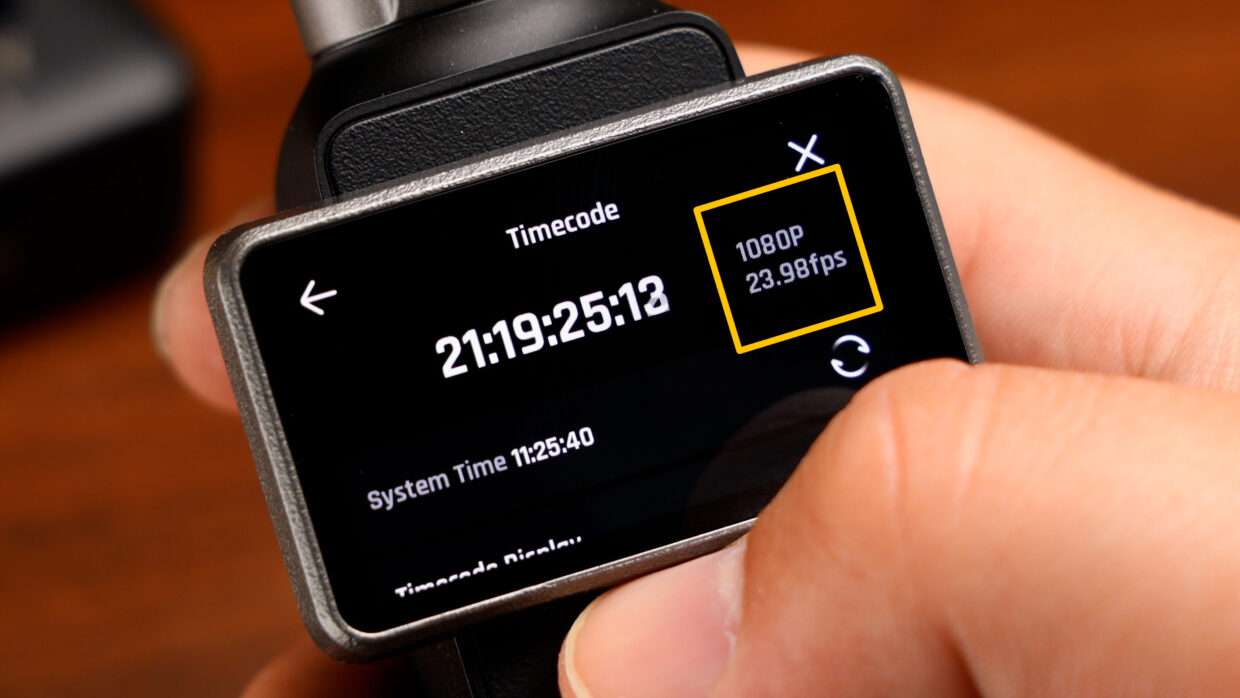
Before plugging in your TC-1, swipe down on the home screen of the Muse and select the settings menu.
Scroll down and select the timecode menu.
Here you can see the true frame rate your device is capturing in the top right.
Step #6
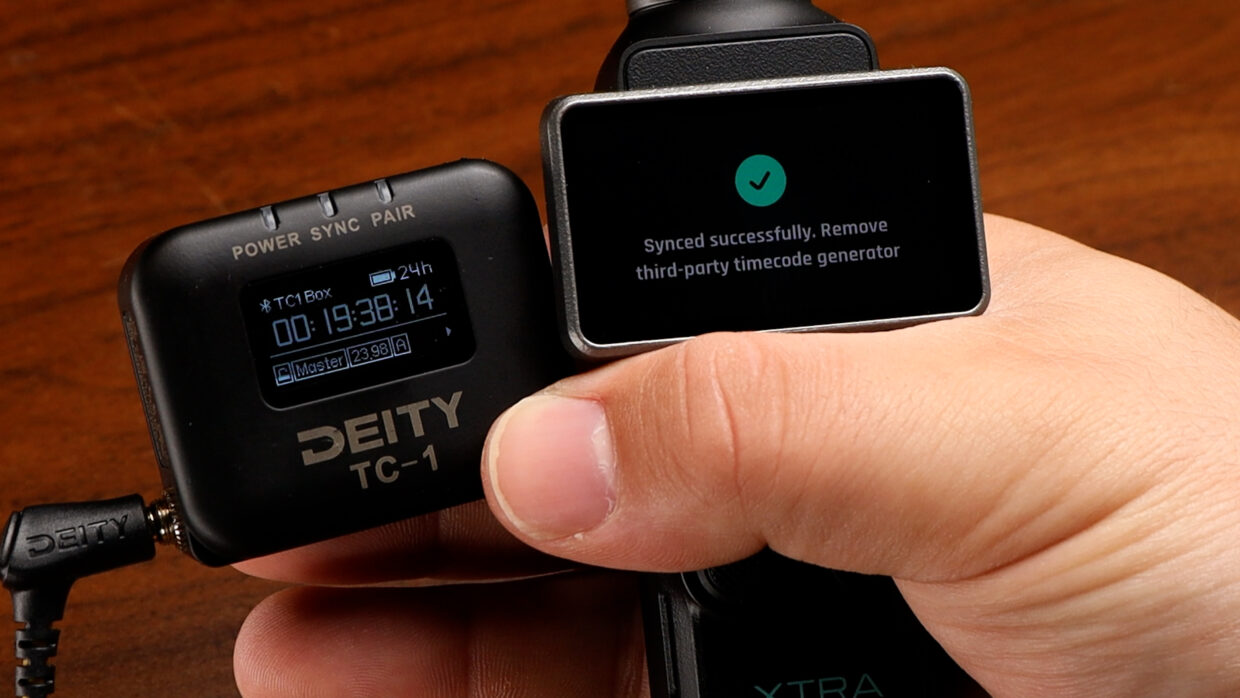
Now, connect the TC-1 to update the Muse internal clock.
Remove the TC-1 for scratch audio or to add an external microphone. Keep the TC-1 powered on for later use, though.
Step #7
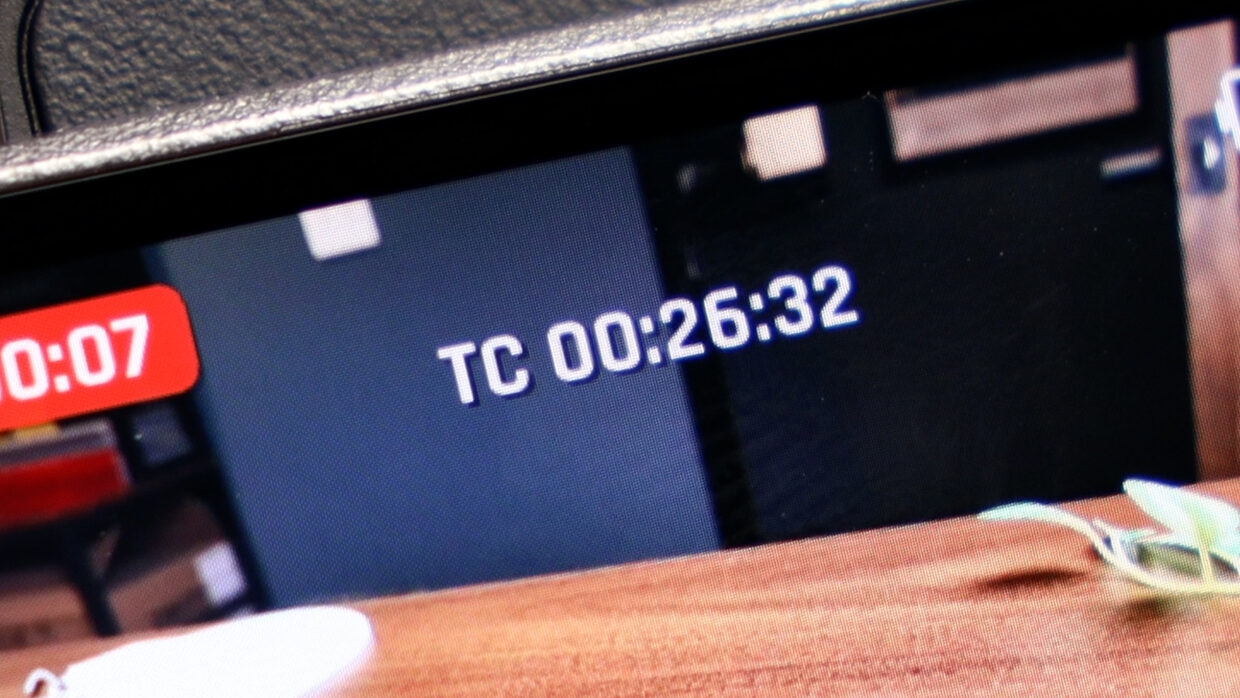
The internal clock of the Muse will lose sync after a few hours; therefore, repeat the jamming process periodically.
There is an option to keep the timecode visible on your screen for quick reference on drift, which we recommend using.
Couple Notes
Between recordings, you can power down the camera for a very short period without losing timecode sync, but use this sparingly before jam syncing again.
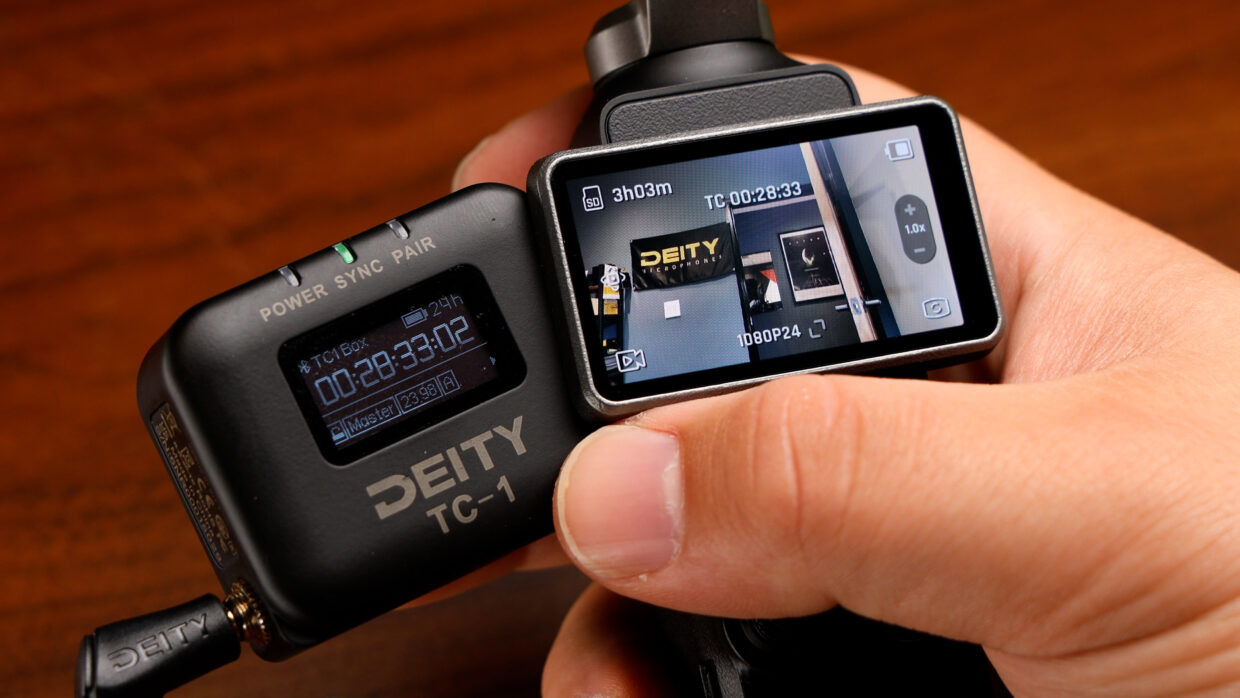
You’re Connected!
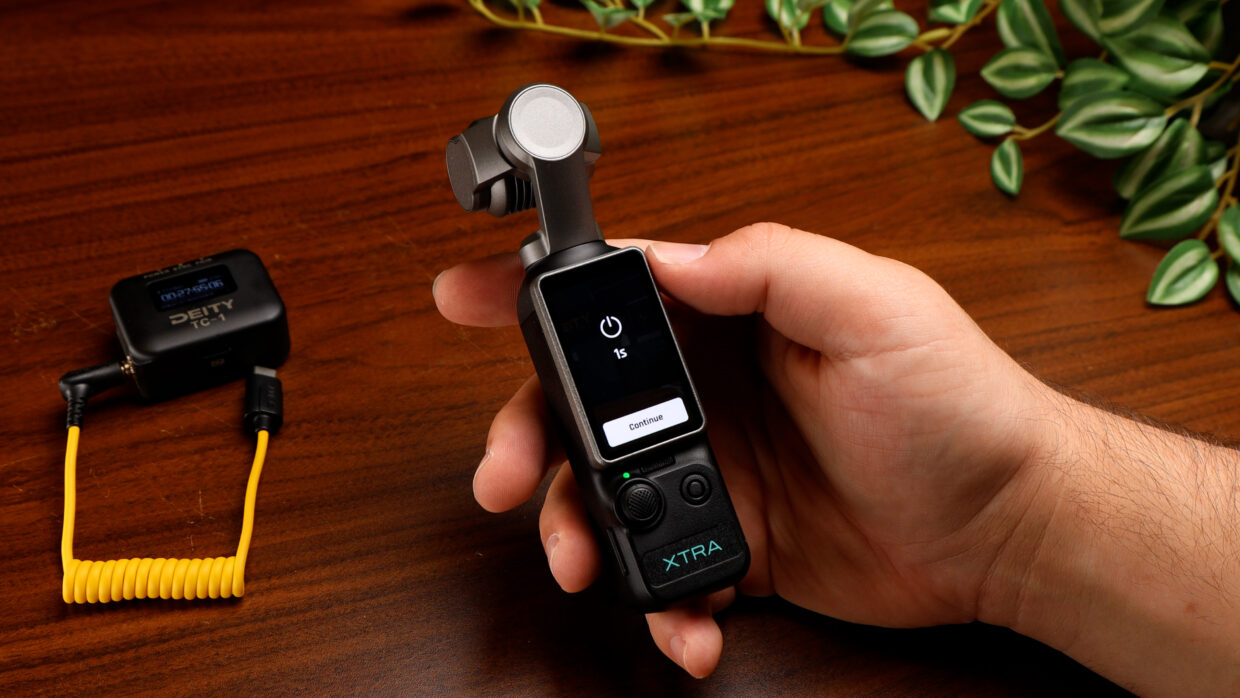
Your XTRA Muse is ready to be synced with the rest of your set!
If you need help syncing your Deity TC-1 to your other Deity TC-1 timecode generators, here is a User Guide!
Connect all your devices to your phone or laptop via Sidus Audio™️. With our app, you can control your device’s settings, monitor their status, and sync all your units at once. Learn More
For the user guide to Sidus Audio™️ Click Here

